

In this article
- Chromebook vs iPad kids: start with the real job
- Where a Chromebook usually comes out ahead
- Where an iPad usually comes out ahead
- Chromebook vs iPad for kids on screen time and distraction
- Safety, parental controls and what parents actually need
- Durability, repairs and the cost after checkout
- So which one should you buy?
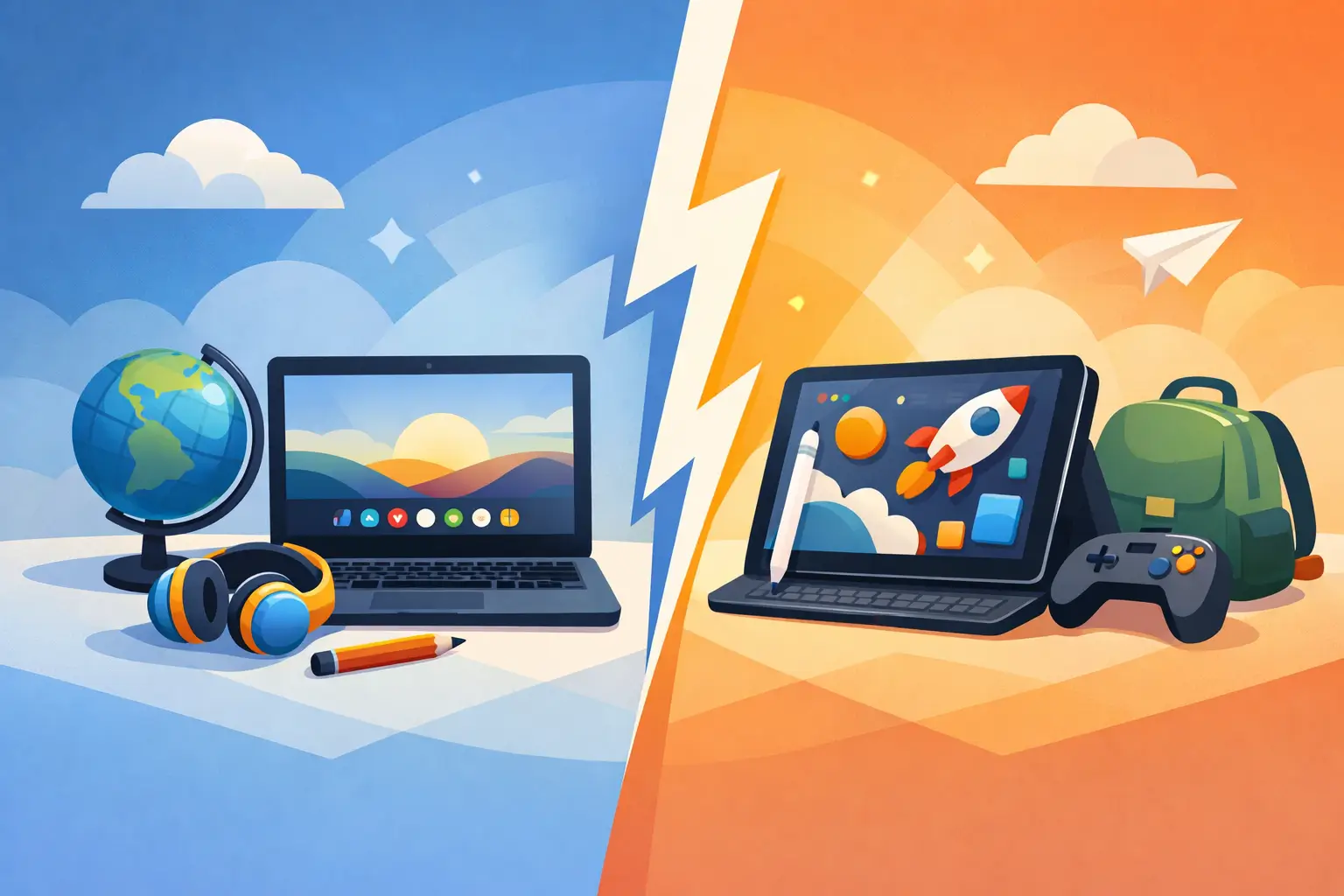
One child wants to watch YouTube, another needs to log into Google Classroom before breakfast, and suddenly you are comparing specs at 10pm. If you are weighing up chromebook vs ipad kids options, the right choice usually comes down to one thing: what your child actually needs the device to do most days.
That sounds obvious, but it is where parents get tripped up. A shiny iPad can feel like the better buy because it is flexible and familiar. A Chromebook can look less exciting, but often makes schoolwork easier and costs less. Neither is automatically best. The better device depends on your child’s age, school set-up, habits, and how much supervision you realistically want to provide.
Chromebook vs iPad kids: start with the real job
Before comparing brands, storage or accessories, ask a blunt question: is this mainly for learning, mainly for entertainment, or genuinely both?
If your child is at primary school and using browser-based tools, spelling platforms, shared documents and teacher portals, a Chromebook often fits family life better. It is built around web use, keyboards come included, and children can get straight into typing, research and classroom tasks without extra add-ons.
If your child is younger, uses touch-first learning apps, or benefits from a more visual and intuitive interface, an iPad may be easier. Tapping, swiping and opening age-based apps is straightforward, even for children who cannot yet type fluently.
Parents sometimes hope one device will do everything equally well. That is possible, but there are trade-offs. A device that is brilliant for worksheets and typing may feel less fun for creative play. A device that is fantastic for games, drawing and videos may need more effort to turn into a proper homework machine.
Where a Chromebook usually comes out ahead
For schoolwork, Chromebooks are often the simpler answer. Most schools now rely heavily on browser-based systems, especially Google Workspace. Children can log in, access shared work, type assignments and save everything in the cloud without much fuss.
That matters more than many parents expect. If your child is regularly writing longer answers, creating presentations or doing online research, a physical keyboard and laptop-style layout make a real difference. They are less likely to peck at a screen, lose patience, or hand the device back saying it is too hard.
Price is another big factor. Entry-level Chromebooks are often cheaper than iPads once you compare the full set-up. With an iPad, many families end up adding a case, keyboard, stylus or extra storage. A Chromebook usually arrives ready for homework from day one.
There is also a practical parenting win here. Chromebooks can be easier to frame as a work tool rather than a toy. That does not stop children using games or watching videos, but the form factor naturally pushes them towards school-style tasks.
Chromebook strengths for school-age children
A Chromebook is often the better fit if your child:
- types regularly for school
- uses Google Classroom or browser-based learning sites
- needs a lower-cost device for homework
- is old enough to manage a laptop carefully
- benefits from a clear split between work and play
For many families, especially with children in Key Stage 2 and above, that is enough to make the decision.
Where an iPad usually comes out ahead
The iPad does some things exceptionally well. For younger children, the touch screen feels natural. They do not need to master a trackpad, keyboard shortcuts or file systems before they can start. Open the app, tap the activity, and off they go.
That ease of use matters for nursery and infant-aged children, but also for children with additional needs. Some find touch navigation more accessible than a standard laptop set-up. The iPad is also strong for creativity – drawing, music, video editing, photo projects and interactive learning apps are often more polished there.
Then there is portability. An iPad is light, quick to grab, and good for car journeys, waiting rooms and shared family spaces. If you want one device that can handle reading apps, video calls with grandparents, light homework and occasional educational games, it does a lot well.
But there is a catch most parents recognise immediately. iPads can slide into entertainment mode very fast. Even when they start as a homework device, children often associate tablets with videos, games and free play. That does not make them a bad choice. It just means the boundaries need to be tighter and more consistent.
Chromebook vs iPad for kids on screen time and distraction
This is where family reality matters more than tech reviews.
If your child struggles to stay on task, a Chromebook may help simply because it feels more like school. The larger screen, keyboard and browser-based workflow can reduce some of the app-hopping temptation. It is not distraction-proof, but it may support better habits.
An iPad, on the other hand, can become a magnet for quick dopamine hits. One minute they are on a phonics app, the next they are asking for five more minutes on a game. For some children, especially those who already find transitions hard, that matters.
That said, not every child finds tablets more distracting. Some children focus brilliantly with touch-based learning tools. If your child is engaged, calm and purposeful on a tablet, there is no need to force a laptop just because it sounds more academic.
The better question is: what happens after ten minutes? Are they still doing the task, or are you constantly redirecting them?
Safety, parental controls and what parents actually need
Both devices offer parental controls, but they work differently.
Chromebooks are often easiest when your family already uses Google accounts. You can manage websites, app access, time limits and account settings through Google Family Link. For school-linked use, that can feel fairly straightforward.
Apple’s parental controls are also strong, especially for app limits, content restrictions, purchase controls and downtime. If your household already runs on iPhones or iPads, keeping everything within the same system may make life easier.
What matters most is not which brand says it has better controls. It is whether you will actually use them properly. A well-set-up iPad is safer than an unrestricted Chromebook. A monitored Chromebook is safer than a tablet with no limits and no conversation.
Here is the part parents cannot outsource to settings. Whichever device you choose, your child still needs clear rules about downloads, chatting, video platforms, passwords and what to do if something upsetting pops up. Device safety is partly technical, but mostly relational.
A simple script helps: “If something online feels weird, confusing or scary, pause and show me. You are not in trouble.” That line matters more than any filter.
Durability, repairs and the cost after checkout
Children drop things. They spill things. They carry devices like they are indestructible, until gravity proves otherwise.
Chromebooks are often better value if you are worried about bumps and school-bag treatment. Many lower-cost models are sturdy enough for everyday use, and repairs or replacement can be less painful financially.
iPads are well made, but screen damage can be expensive. A good protective case is not optional. If you choose an iPad for a younger child, budget for the case from the start rather than treating it as an extra.
Also think about accessories. A Chromebook includes the keyboard. An iPad may become far more useful with a keyboard case, but that changes the total cost quickly. Parents often compare the base prices and miss the real spend.
So which one should you buy?
If your child mainly needs a device for schoolwork, typing, research and browser-based learning, buy the Chromebook. It is usually the more practical, lower-cost, less distracting choice.
If your child is younger, benefits from touch-based learning, loves creative apps, or needs a device that works well for flexible family use, buy the iPad.
If your child is in that middle zone – perhaps age 7 to 11, doing a mix of school platforms and app-based learning – it helps to look at their current habits, not your ideal ones. A child who hates typing and thrives with interactive apps may do better on an iPad. A child who is starting regular homework and written tasks may outgrow the tablet quickly and be better served by a Chromebook.
If school has already recommended a platform, make that your anchor. Fighting the school system at home rarely ends well.
At Kiwi Families, we often come back to the same advice with family tech: buy for the next two years of real use, not for the fantasy version of family life. The best device is the one your child can use safely, consistently and with the least daily friction for you.
And if you are still torn, trust this rule of thumb: for homework first, Chromebook. For touch learning and creative play first, iPad. The calmer choice is usually the right one.